
How to Create Multiple Folders from a List
Manually creating folders from a list used to be a tedious, time-consuming challenge, often requiring you to build them one by one or resort to complex Terminal commands like cat Folder.txt | xargs mkdir. It was far too easy to make mistakes or waste valuable time on repetitive tasks.
Now, generating dozens of uniquely named folders is effortless with Multiple Folder Creator. To begin, simply select your target destination folder. Next, paste your list of names into the designated section—remembering that each new line represents a separate folder. Finally, click Create Folders. A helpful pop-up will appear instantly to confirm the process was successful.
For a more tailored experience, you can access the settings by clicking the gear icon in the top right corner. From there, you can easily customize the app’s appearance and toggle notification preferences to suit your specific workflow.
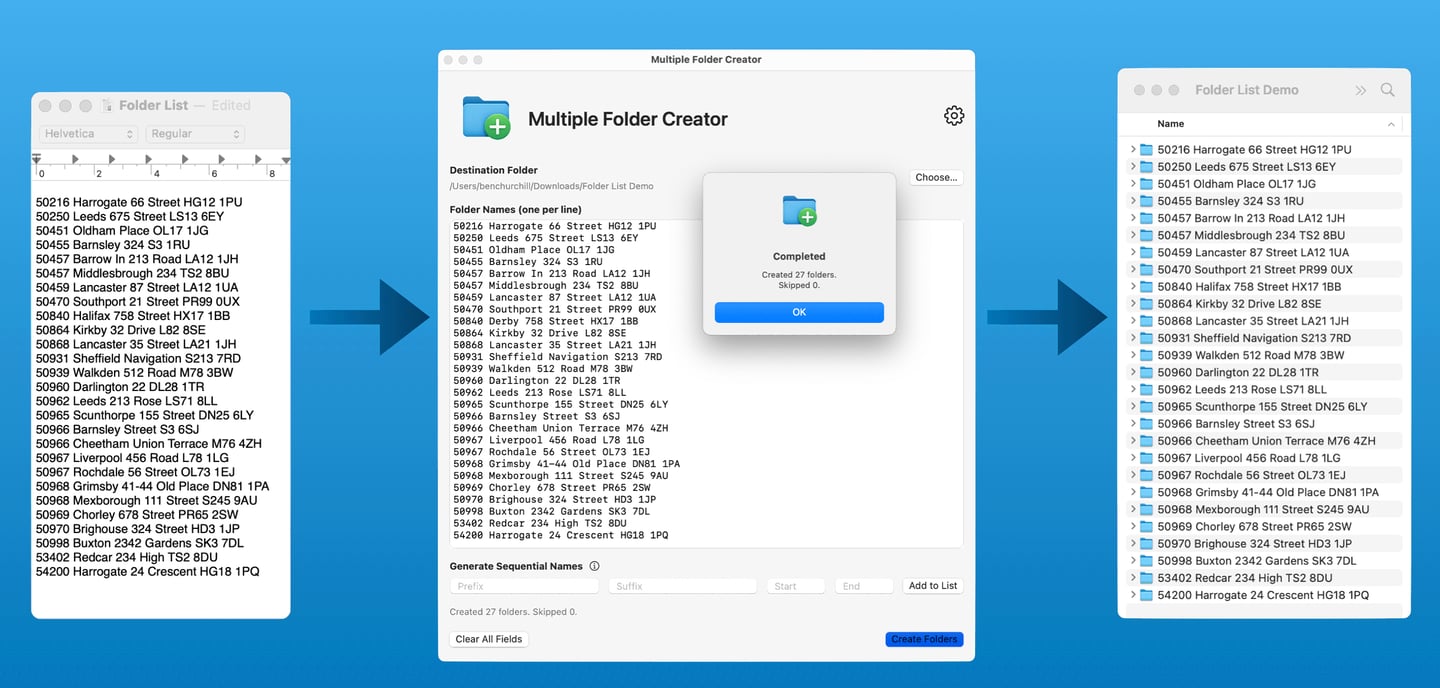
Paste List
Just paste your folder names or use the generator to start creating.
Set Options
Choose save location, add prefixes or suffixes, and customize numbering.
Reuse previous settings to speed up your workflow every time.
Create Folders
How to Create Multiple Folders using the sequential numbering and naming system
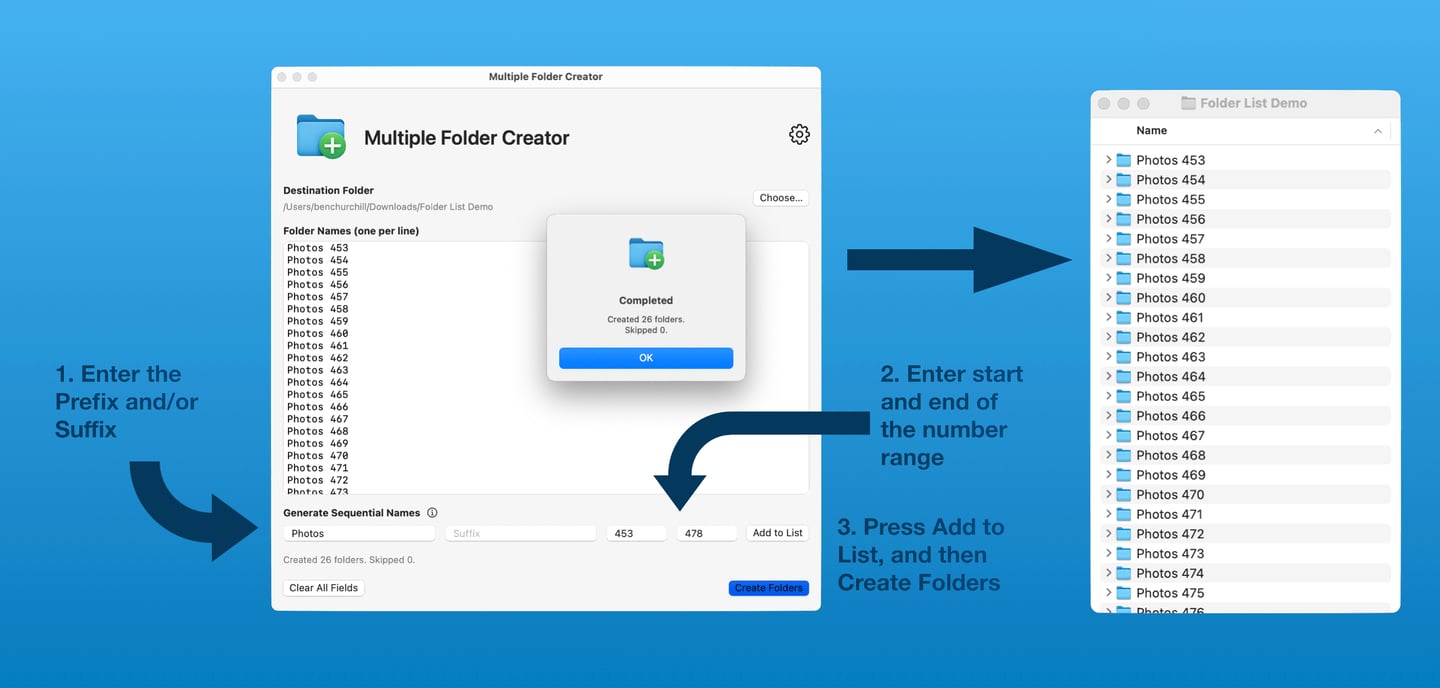
If you need to make hundreds of folders with a sequential numbering this is now very easy.
First, select the destination folder. Secondly, enter the Prefix and/or Suffix you require, and select the beginning and end of the numbering range you'd like. After this has been done press Add to List to create the list of names, and then finally press Create Folders. A small pop-up will appear to let you know the folders have been created.
Feedback
We'd love to hear back from you for ideas on how we can improve.
© 2025. All rights reserved.